
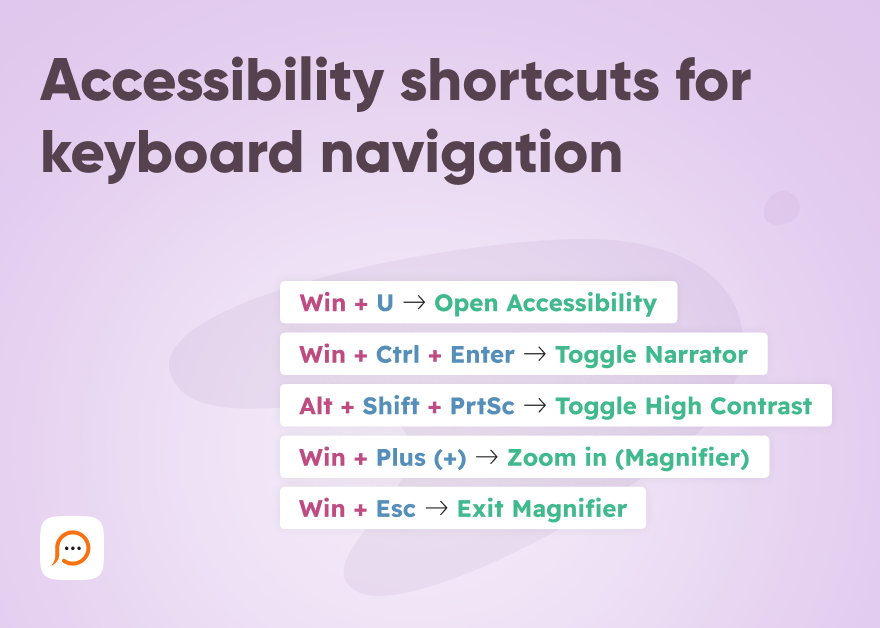
Mastering keyboard navigation is one of the most effective ways to make digital environments more accessible. For users with visual impairments, motor disabilities, or even power users seeking efficiency, the keyboard serves as the primary gateway to the web and operating systems.
This guide explores the essential shortcuts for navigating Windows, macOS, and web browsers with accessibility in mind.
Using focus in web navigation
Before diving into specific keys, it’s vital to understand the “focus” system. In any accessible software, you should be able to navigate without a mouse using only three primary interactions:
- Tab: Moves the “focus” (usually a blue or dotted outline) forward to the next interactive element (links, buttons, form fields).
- Shift + Tab: Moves the focus backward to the previous element.
- Enter or Spacebar: Activates the focused element (clicks the link or pushes the button).
Essential system accessibility shortcuts
Both Windows and macOS have built-in “Quick Access” panels to toggle features like Screen Readers (Narrator/VoiceOver), Magnifiers, and High Contrast modes.
Windows accessibility shortcuts
- Win + U: Opens the Accessibility Settings menu.
- Win + Ctrl + Enter: Turns Narrator (Screen Reader) on or off.
- Win + Plus (+): Turns on the Magnifier and zooms in.
- Win + Esc: Turns off the Magnifier.
- Left Alt + Left Shift + Print Screen: Toggles High Contrast mode on or off.
- Shift (press 5 times): Toggles Sticky Keys, which allows you to press multi-key shortcuts one at a time.
macOS accessibility shortcuts
- Option + Cmd + F5: Opens the Accessibility Shortcuts panel.
- Cmd + F5: Turns VoiceOver on or off.
- Option + Cmd + 8: Turns Zoom on or off.
- Option + Cmd + Plus (+) / Minus (-): Zooms in or out while Zoom is active.
- Ctrl + Option + Cmd + 8: Inverts display colors (Classic High Contrast).
Advanced browser navigation
Web browsers like Chrome, Firefox, and Edge include hidden shortcuts that help users bypass cluttered menus and jump straight to content.
Shortcut Windows/Linux:
- Move focus to the address bar: Ctrl + L or Alt + D
- Move focus to toolbar: Shift + Alt + T or F10
- Jump to content (caret browsing): F7
- Next/Previous pane: F6 / Shift + F6
- Find on page: Ctrl + F
Shortcut macOS:
- Move focus to the address bar: Cmd + L
- Move focus to toolbar: Cmd + L then Tab
- Jump to content (caret browsing): F7
- Next/Previous pane: Cmd + Option + Arrow keys
- Find on page: Cmd + F
Live chat accessibility with Provide Support
Integrating accessibility into digital customer service is no longer optional, and Provide Support Live Chat software addresses this by offering a chat window designed to meet WCAG 2.0 compliance standards.
By adhering to the core principles of being Perceivable, Operable, Understandable, and Robust, Provide Support ensures that individuals with diverse needs, including those using screen readers or navigating solely via keyboard, can engage in seamless real-time communication. Key features such as ARIA labels for assistive technology, clear visual focus indicators, and logical tab order work together to remove barriers, providing an inclusive support experience that empowers every website visitor regardless of their physical or cognitive abilities.

- The problem with chatbots that nobody talks about - August 18, 2026
- The complete e-commerce website checklist: live chat, payments, security and more - July 27, 2026
- Cultural nuances in real-time live chat support - July 14, 2026

