|
<< Click to Display Table of Contents >> Integrations > Shopping Cart Integrations > CS-Cart > CS-Cart Integration |
How to start
To start integration you need to have an account in Provide Support Live Chat system. If you are an existing user, please log into your account Control Panel on Provide Support website and log into it with your credentials. If you have not had a chance to create an account yet, please register it here and start using your free 10-day fully functional trial.
How to add a chat button to CS-Cart website
Integration is quite simple and straightforward. The best option for the chat button is appearing in a fixed position. To proceed with integration, please follow the below instruction:
1.In your Provide Support account Control Panel, please follow to My Account / Chat Button Codes page and choose there 'Fully Featured Chat Button Code with Uploadable Online / Offline Images' and copy it.
2.Log into your CS-Cart admin panel and open there Website / Themes / Layouts.
3.Scroll down to the bottom and click the + sign in any grid that is common for all website pages. For example, it can be a grid with the About Us block in the Footer section. Then choose ‘Add block’ option.
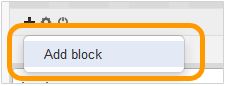
Adding a new block in CS-Cart
4. Then click ‘Create New Block’ at the top and choose HTML block.
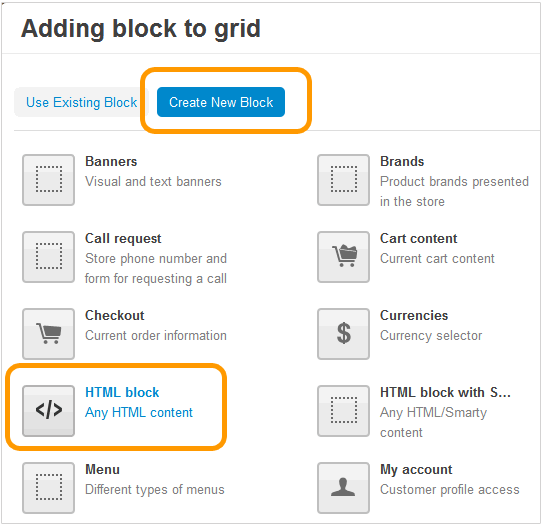
New HTML block in CS-Cart
5.Create a name for your new block (e.g. Live Chat) and click ‘Content’ at the top. You will need to switch to HTML view by clicking on the <> icon.
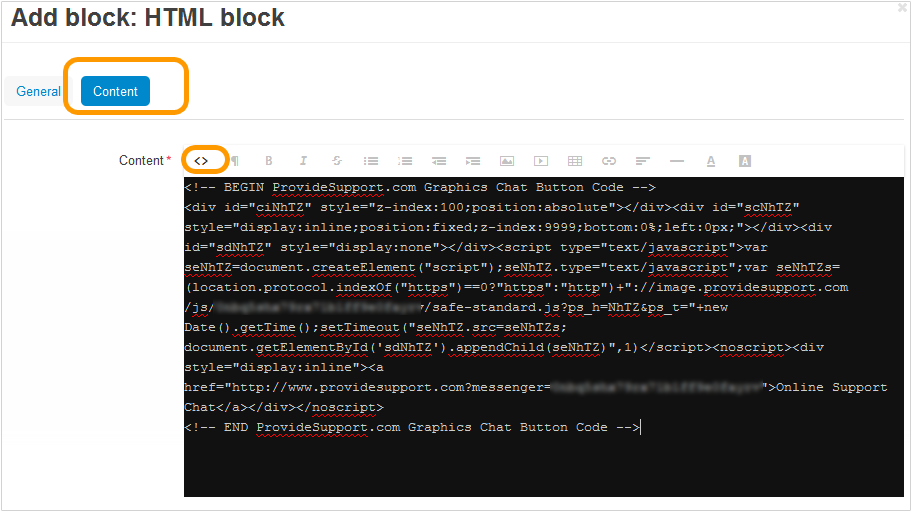
Adding HTML in CS-Cart
6.After clicking ‘Create’ button, the block will appear in your layout and you will see the button on your website.
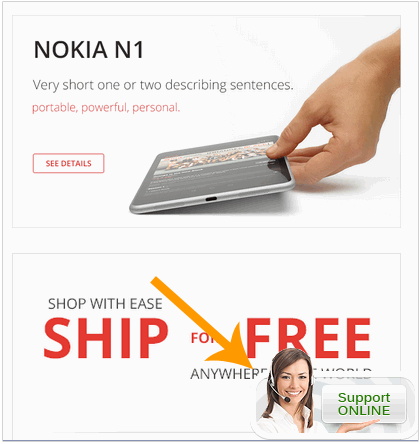
Chat button on CS-Cart website