|
<< Click to Display Table of Contents >> Integrations > Shopping Cart Integrations > Zen Cart > Zen Cart Integration |
Provide Support Live Chat and Zen Cart Integration
Direct Integration
You can integrate Provide Support Live Chat tool with your Zen Cart website by pasting chat button code directly into your template source file. To proceed with this live chat and Zen Cart integration, please do the following:
1.Get the code for your live chat button on the My Account / Chat Button Codes page, click there 'Fully Featured Chat Button Code with Uploadable Online / Offline Images' and copy the code.
2.Connect to your FTP or CPanel client
3.Proceed to Includes directory
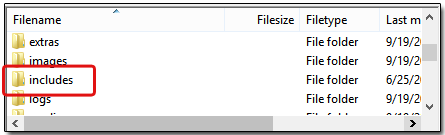
Zen Cart Includes Directory
4.Then open Templates / Your_Template_name / Common folder
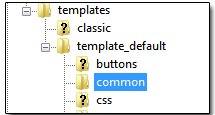
Zen Cart Common Folder
5.In Common folder open for editing tpl_footer or tpl_header.php file in Notepad or another HTML editor and insert your Provide Support Live Chat Button Code at the very bottom of it.
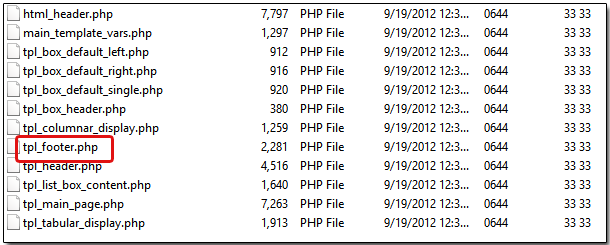
Zen Cart Template Files
6.Save and upload updated file to your FTP or cPanel
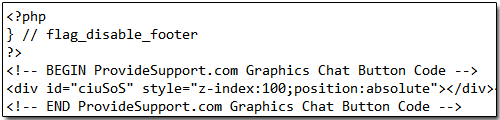
Chat Button Code
7.That's it! Check how the live chat button looks on your website