|
<< Click to Display Table of Contents >> Integrations > CMS Integrations > WIX Website Builder > WIX Website Builder Integration |
How to place Live Chat Button on a WIX website
Live chat and WIX integration will be fully functional if the chat button code is added as a custom code, which is accessible only for websites with WIX Premium Plan enabled.
To add live chat to your WIX website, please follow the instruction:
1.Log into your Provide Support account Control Panel, follow My Account / Chat Button Codes page and copy there Pure Javascript Code
2.Log into your WIX website dashboard
3.Follow there Settings / Development and Integrations / Custom Code
4.Click “Add Custom Code” button
5.Now paste your Pure JavaScript code to the "Paste the code snippet here" field
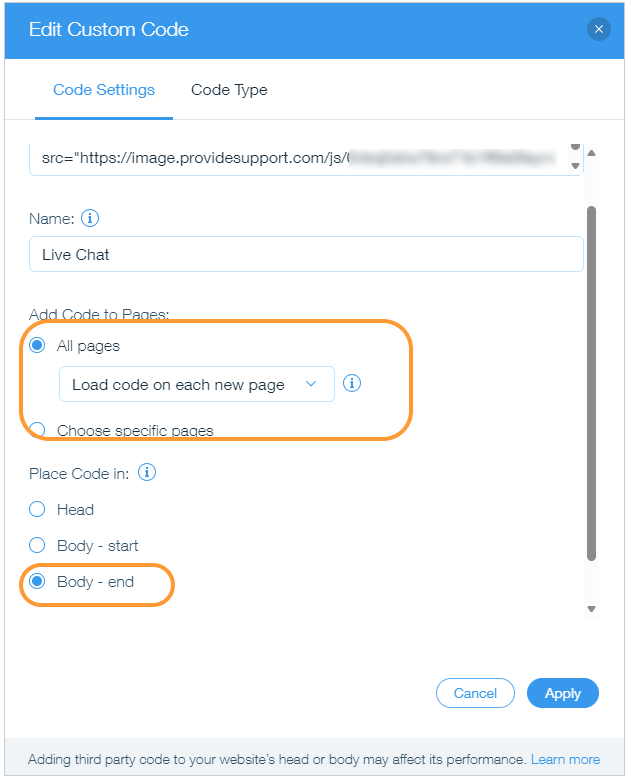
Adding chat button code for WIX
6.Choose pages you would like to display your chat button at. You can either display your chat button on all pages or select specific pages from the list
7.In case you would like to add the chat to all website pages, select "Load code on each new page" option, this way real time monitoring will work properly
8.In the "Place code in" section choose "Body - end"
9.Apply changes and publish your updates