Fast and Powerful
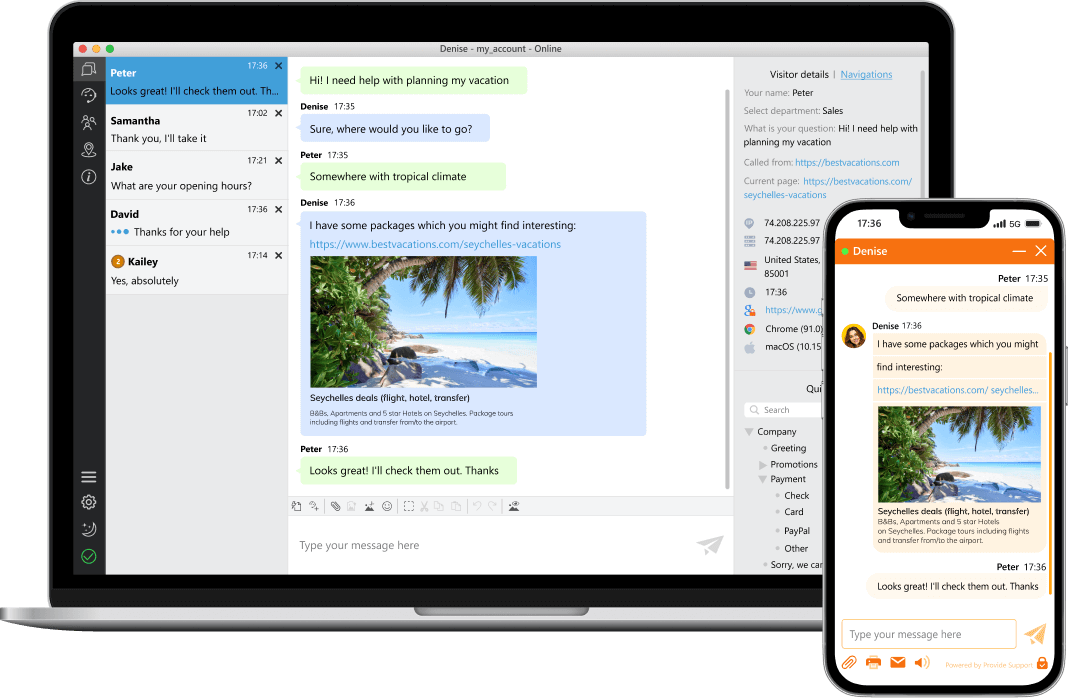
All Provide Support payment plans come with the same set of features. They differ only in the number of agent profiles in the account.














Fast and Powerful
All Provide Support payment plans come with the same set of features. They differ only in the number of agent profiles in the account.
Secure
We use advanced encryption for chat conversations, chat transcripts, and offline emails to protect your company's information.
Unlimited Domains
An unlimited number of chats per agent and the option to add your live chat button to multiple domains at no additional cost.
Best service
We are constantly working to improve our service and adding new features. Our customer service line is available 24/7.
Easy Integration
Whether you are running Magento, Shopify, Wix, WordPress, Joomla or any other platform, you can easily integrate our live chat widget.
30-Day Money-Back
We offer a 30-day money-back promise if you decide to stop using our live chat service after your first payment. There are no hidden costs with us.












Yes, all live chat features are available during your free trial. You can create any number of agent profiles, add your live chat button to multiple domains and take advantage of all of the features.
41 languages are currently available for the live chat window. If your required language is not listed in your account settings, please let us know. The desktop agent app is currently available in English, German, Chinese and Russian.
The web agent app is currently available in English, German, French, Chinese and Russian.
Our website and account Control Panel are available in English, German, French, Spanish, Brazilian Portuguese, Japanese, Chinese and Russian.
You need to insert a chat button code into your website source. You can find our chat button codes on the My Account / Chat Button Codes page in your account. Additionally, you can check our integration tutorials.
Your agent logins will be locked after the free trial expires, and you will not be able to assist your customers on live chat. However, we do not remove accounts, all of your settings will be stored intact and you can activate your account at any time.
To recover your password, please follow our password recovery link. If you cannot recall your account name, please contact our 24/7 live chat customer service for assistance.
Secure connection is enabled in all new accounts by default. This feature can be enabled or disabled on the Account Settings / Connection page in your account.
We send chat transcripts and offline messages via an encrypted channel. We do not store them on our servers. The encryption takes place during transmission from our server to customer's mail server.
You can add a privacy consent to your pre-chat survey and offline form and hide visitors’ data from chat transcripts and real time visitor monitoring.
We offer detailed statistics for your agent performance and general information on visited website pages and pages where the live chat button was clicked.
Yes, we offer IP blocker where you can block separate IPs, IP ranges and domains. You can also specify allowed domains and filter your customers by regions.
Yes, you can send chat invitations from your agent app. If you would like to draw attention of your website visitors automatically, you can enable eye catcher bubble which will appear on your website above, below or next to your live chat button, depending on its position on your website page.
Yes, you can add there any number of fields and create custom drop down lists. It is also possible to skip the pre-chat survey and jump to chat immediately after clicking the live chat button.
Yes, you can request your account cancellation anytime. If you are a new customer, we offer 30-day money back guarantee. This means we will refund the first payment within first 30 days of your billing period if you were not satisfied with our service.
We accept credit / debit cards and UnionPay as well as PayPal, Alipay and Bitcoin payments. It is also possible to pay with wire transfer, USA check or ACH.
There are no hidden or additional fees with us. All features are available with any payment plan. We offer standard monthly and annual plans for 1, 3 and 10 agent profiles as well as enterprise plans for more than 10 agent profiles.
You can purchase more agent profiles anytime during your billing period. The amount left on your account balance on the day of upgrade will be deducted from your new subscription package price. A new billing period will start from the day of upgrade
By default auto charge is enabled for card payments and PayPal. If you would like us not to charge your card on file automatically, contact our 24/7 live chat customer service. PayPal auto charge you can disable in your PayPal account.
Yes, we offer apps for Android and iPhone. Your agents can install them on their devices and use to assist customers on the go or just to monitor chats if they need to step away from their computers.
Yes, your agents can log into desktop and mobile apps at the same time. This is convenient if they need to monitor chats when they need to leave their working place for some time. They can also install our desktop app on any number of computers and connect with the agent app from home.
Our web app supports all features you need for smooth and convenient chatting process. However, desktop app is more stable and supports such features as screenshots, flexible chat notifications, Geo location tab and gives a possibility to adjust the look of Visitors tab with monitoring results.
You can have as many chats you can handle, we do not limit the number of chats per agent. In our system it is possible automatically close chats where the visitor left the conversation. You can enable this option on the Account Settings / Chat Management page.
Thousands of businesses use our Live Chat widget globally for their customer service needs

North America
"We really appreciate your services. We did find an impact on our business process. It is another avenue to talk to customer on a one-on-one basis. Your service is excellent."
"Provide Support's on-line chat software has opened up a great new way for customers and prospects to get in touch with us and have their questions answered right away."
"...our department uses this feature to assist approximately 1,400 customers a year. Our customers have remarked on enjoying the ease of access that this chat feature provides..."
Europe
"Our experience, as a company, with Provide Support, so far is excellent!!! We have received excellent treatment whenever we needed to contact Provide Support. Keep up the good work!!!"
"...The live chat system is now an integral tool for our customer service team and for our customers and allows us to offer just another way of getting in touch and communicating. We have recommended ProvideSupport to other organisations..."
"In Mpcshop we are using Provide support from more than 10 years. It is part of our working tools and we can not imagine not to have it. We find it very useful expecially to communicate with customers of other languages."
Asia
"As a proud customer of Provide Support since the past few months, I think your service is ABSOLUTELY FANTASTIC! I couldn't have really asked for more. Keep up the good work!"
Africa
"Provide Support's software is well-designed, and it does a vital job to help us keep instant contact with our valued clients globally. Provide Support is a reliable service provider that never fails to deliver good solutions"
South America
"Somos clientes da Provide Support a muitos anos e estamos totalmente satisfeitos com solução de comunicação. Já faz parte do dia a dia a comunicação de nossos clientes com nossa empresa pelo Chat..."
